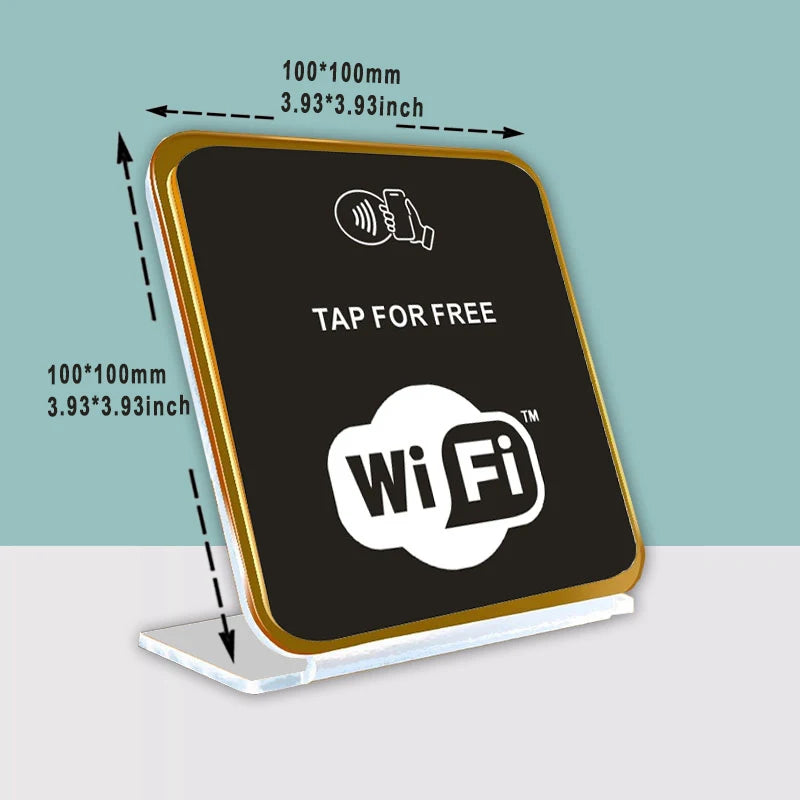
NFC Wi-Fi Share Card & Stand – One-Tap Guest Wi-Fi Access
NFC Wi-Fi Share Card & Stand – One-Tap Guest Wi-Fi Access
Couldn't load pickup availability
Specifications
- Product Type: NFC Wi-Fi Share Card / Stand / Sticker
- NFC Chip: NFC Forum Type 2 Tag
- Operating Frequency: 13.56 MHz
- Protocol: ISO/IEC 14443A
- Material: PVC / Epoxy (varies by variant)
- Power: Passive (no battery required)
- Water Resistant: Yes
- Operating Temperature: -40°C to +85°C
Overview
Make sharing your Wi-Fi effortless and secure.
This NFC Wi-Fi Tap Card or Stand lets guests connect to your Wi-Fi by simply tapping their phone — no typing passwords, no QR codes, no confusion.
Ideal for cafés, restaurants, offices, Airbnb hosts, salons, reception desks, and events. Just program your Wi-Fi details once, place it where guests can see it, and let them connect instantly.
Simple. Clean. Professional.
⭐ Key Benefits
- One-tap Wi-Fi sharing using NFC
- No visible passwords on walls or counters
- Rewritable — update Wi-Fi details anytime
- No batteries or power required
- Multiple form factors: card, stand, sticker
- Great for guests, staff & customers
How to Set Up Your NFC Wi-Fi Card / Stand
What You Need
-
An Android phone with NFC
-
A free app: NFC Tools or NXP TagWriter
-
Your Wi-Fi name (SSID) and Wi-Fi password
Step-by-Step Setup (Android)
-
Enable NFC
On your Android phone, go to Settings → Connections → NFC and turn it ON. -
Install an NFC App
Download one of these free apps from the Play Store:-
NFC Tools
-
NXP TagWriter by NXP
-
-
Open the App & Create a Wi-Fi Record
-
Choose Write / Add a Record
-
Select Wi-Fi Network
-
Enter:
-
Wi-Fi name (SSID)
-
Wi-Fi password
-
Security type (WPA/WPA2 is most common)
-
-
-
Write to the NFC Card
-
Tap Write
-
Hold your phone flat against the NFC card / stand
-
Wait for the confirmation message
-
-
Test It
-
Tap the card again with your phone
-
Your Wi-Fi should appear instantly — tap Connect
-
Rewriting or Updating
Need to change Wi-Fi details later?
-
Simply rewrite the card using the same steps above
-
The NFC chip is fully rewritable
iPhone Users (Important)
-
iPhones do not support one-tap Wi-Fi sharing via NFC
-
iPhone users must connect manually via Wi-Fi settings
-
For mixed devices, we recommend:
-
Using this for Android users
-
Or linking the NFC to a custom setup page (advanced option)
-
Tips for Best Performance
-
Place the card or stand away from metal surfaces
-
Tap phones slowly and hold for 1–2 seconds
-
Keep NFC enabled on the phone
Need Help?
This product is DIY by design, but if you need help or want a pre-configured solution, contact us via Adsngin.
Share